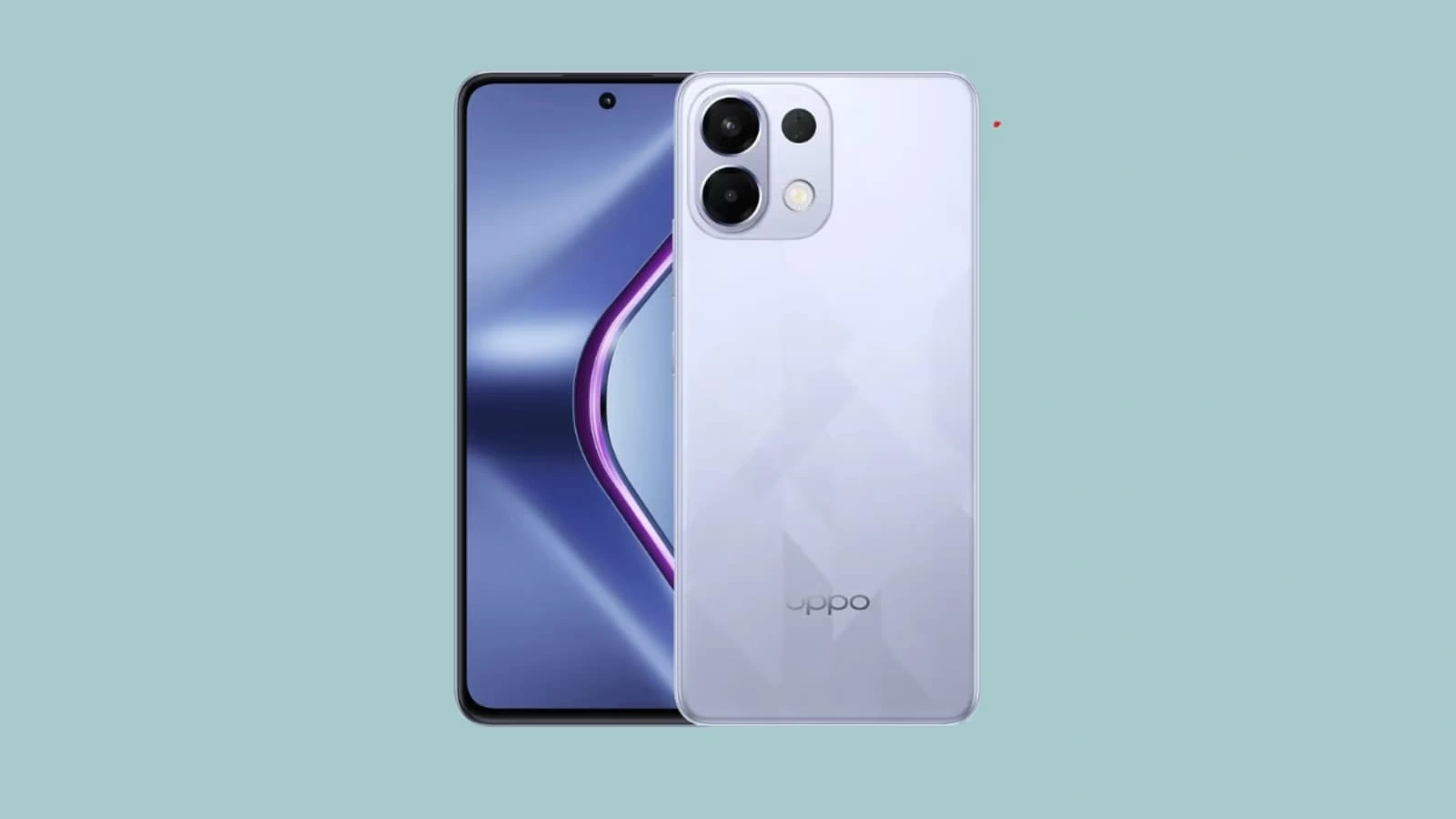
Discover the top 10 Oppo K13 5G tricks you must try today! Unlock hidden features, boost performance, and enhance your smartphone experience with these expert tips.
Introduction
The Oppo K13 5G is a mid-range smartphone that has captured the attention of tech enthusiasts worldwide. Known for its sleek design, smooth performance, and advanced 5G connectivity, this device is more than just a phone—it’s a productivity tool, a gaming console, and a photography companion all rolled into one.
However, many users only scratch the surface of what the Oppo K13 5G can do. The phone comes with several hidden tricks and features that, when used correctly, can transform your experience. These tricks range from simple interface tweaks to advanced performance enhancements, all designed to make your smartphone usage smoother, faster, and more enjoyable.
In this article, we will explore the top 10 Oppo K13 5G tricks you must try today. These tips are perfect for casual users, gamers, photography enthusiasts, and anyone looking to get the most out of their device. By the end of this guide, you’ll be equipped to unlock the full potential of your Oppo K13 5G.
1. Customize the Always-On Display
The Oppo K13 5G comes with a stunning display that can be customized with an Always-On Display (AOD). This feature allows your phone to show essential information such as the time, date, battery percentage, and notifications, even when the screen is off.
How to Customize Always-On Display:
- Open Settings on your Oppo K13 5G.
- Navigate to Display & Brightness.
- Select Always-On Display and toggle it on.
- Choose your preferred clock style, color scheme, or image.
- Preview the design and save the settings.
Tips for Using AOD Effectively:
- Use minimal designs to save battery.
- Display essential notifications without unlocking the phone.
- Rotate between multiple designs for variety.
The Always-On Display not only enhances convenience but also gives your phone a personalized and modern aesthetic.
2. Maximize Battery Life with Smart Power Saving
Battery life is a critical factor for smartphone users, especially for those who rely on their devices for work, gaming, or social media. The Oppo K13 5G includes Smart Power Saving and Super Power Saving modes that can significantly extend battery performance.
How to Maximize Battery Life:
- Go to Settings > Battery > Power Saving Mode.
- Choose either Smart Power Saving or Super Power Saving.
- Restrict background activity for apps that consume high battery.
- Enable App Quick Freeze to pause unused apps automatically.
Advanced Tips:
- Reduce screen brightness and disable always-on features for better efficiency.
- Turn off unnecessary connectivity options like Bluetooth, Wi-Fi, or NFC when not in use.
- Avoid intensive gaming or high-performance apps when battery is below 20%.
By optimizing your battery settings, you can ensure longer usage without frequent charging, making your Oppo K13 5G more reliable throughout the day.
3. Capture Stunning Photos with AI Camera Tricks
The Oppo K13 5G boasts a capable camera system enhanced with AI technology, allowing users to capture professional-quality photos effortlessly.
Key Camera Features:
- Night Mode: Enhances photos in low-light conditions, making them bright and detailed.
- AI Scene Recognition: Automatically adjusts settings based on the environment and subject.
- Ultra Macro Mode: Allows extreme close-ups with incredible detail.
How to Use AI Camera Tricks:
- Open the Camera app.
- Choose the appropriate mode for your scenario (Night, Portrait, or Macro).
- Let the AI automatically adjust settings, or manually tweak brightness, contrast, and saturation.
- Experiment with different filters and effects for creative photos.
Photography Tips for Oppo K13 5G Users:
- Use the grid lines to align subjects perfectly.
- Avoid zooming digitally; instead, move closer to the subject for better quality.
- Clean the camera lens regularly to prevent blurry images.
With these tricks, you can turn ordinary shots into eye-catching photos suitable for social media or personal albums.
4. Unlock Smooth Gaming Performance
Gaming on the Oppo K13 5G is a delight, thanks to Hyper Boost and Game Space, which optimize your device for high-performance gaming.
How to Boost Gaming Performance:
- Open Game Space and add your favorite games.
- Enable Performance Mode to maximize CPU and GPU efficiency.
- Turn on Do Not Disturb to block notifications while gaming.
- Use Frame Rate Stabilization to maintain smooth visuals.
Additional Gaming Tips:
- Close unnecessary apps in the background to free up RAM.
- Reduce screen resolution for energy-efficient gaming sessions.
- Use headphones for immersive audio without distractions.
These tweaks ensure lag-free gameplay and a responsive touch experience, making the Oppo K13 5G a powerful device for mobile gamers.
5. Quick Access with Smart Sidebar
The Smart Sidebar is one of the most underrated features of ColorOS on the Oppo K13 5G. It provides instant access to apps, tools, and shortcuts without navigating through multiple menus.
How to Use Smart Sidebar:
- Open Settings > Convenience Tools > Smart Sidebar.
- Enable the feature and choose which apps or tools to add.
- Swipe from the screen edge to reveal the sidebar anytime.
Tips for Maximum Efficiency:
- Add frequently used apps such as messaging, notes, and camera.
- Include tools like calculator, screen recorder, and screenshot for quick access.
- Rearrange icons based on your usage priority.
Smart Sidebar saves time and makes multitasking smoother, allowing you to switch between tasks efficiently.
6. Enable Split-Screen Multitasking
Split-screen mode is ideal for multitasking on the Oppo K13 5G. It allows you to run two apps simultaneously, enhancing productivity.
How to Enable Split-Screen:
- Open Recent Apps.
- Tap the Split-Screen icon next to the desired app.
- Select the second app to display alongside the first.
- Adjust the size of each screen for better usability.
Practical Use Cases:
- Watch YouTube videos while taking notes.
- Browse the web while chatting on social media.
- Compare products or documents side by side.
Split-screen multitasking turns your phone into a mini workstation, perfect for both students and professionals.
7. Personalize Your Phone with Themes
ColorOS on Oppo K13 5G allows deep customization of your phone’s interface, including themes, wallpapers, and icons.
How to Personalize Your Phone:
- Open the Theme Store on your device.
- Browse for themes that match your style.
- Apply themes to change wallpapers, icons, and fonts.
- Use dynamic wallpapers for a more interactive home screen.
Tips for Personalization:
- Change themes seasonally to keep your phone looking fresh.
- Combine wallpapers and icon packs for a unique look.
- Adjust the lock screen and Always-On Display to match your theme.
Personalization not only improves aesthetics but also makes your phone feel uniquely yours.
8. Use Smart Air Gestures
The Oppo K13 5G supports Air Gestures, which let you interact with your device without touching the screen. This futuristic feature adds convenience and a touch of innovation to your smartphone experience.
How to Enable Air Gestures:
- Go to Settings > Convenience Tools > Air Gestures.
- Enable the gestures you want to use.
- Practice the gestures for accuracy.
Useful Air Gestures:
- Wave to answer calls.
- Scroll through photos or web pages with a hand movement.
- Control media playback without touching the device.
Air gestures are especially useful when your hands are full or dirty, providing a hands-free control experience.
9. Secure Your Data with Private Safe
Security and privacy are critical, and the Oppo K13 5G addresses this with Private Safe. This feature allows you to store sensitive files, photos, and apps securely.
How to Use Private Safe:
- Navigate to Settings > Privacy > Private Safe.
- Set up a password or biometric authentication.
- Move sensitive files, images, or apps into Private Safe.
Tips for Maximum Security:
- Regularly update your password or use biometric authentication for added safety.
- Avoid storing sensitive data in public folders.
- Use encryption for extra protection.
With Private Safe, your personal data remains protected from unauthorized access.
10. Optimize Phone Speed with App Cloner and RAM Expansion
For maximum performance, the Oppo K13 5G includes App Cloner and RAM expansion, ensuring smooth multitasking and faster app response.
How to Use App Cloner and RAM Expansion:
- Go to Settings > Smart Services > App Cloner to run multiple accounts of the same app.
- For RAM expansion, navigate to Settings > About Phone > RAM Expansion and enable the feature.
- Perform regular system maintenance by clearing cache and optimizing storage.
Performance Tips:
- Keep unused apps in sleep mode to save RAM.
- Avoid installing heavy apps unnecessarily.
- Regularly restart the device for optimal speed.
These tricks ensure your Oppo K13 5G runs efficiently, even with multiple apps and heavy usage.
Conclusion
The Oppo K13 5G is a versatile smartphone packed with features that enhance productivity, gaming, photography, and daily convenience. By applying these top 10 tricks, you can unlock hidden capabilities, extend battery life, boost performance, and create a personalized experience tailored to your needs.
From customizing the Always-On Display to mastering Air Gestures and securing your files with Private Safe, these tips will help you make the most of your Oppo K13 5G. Explore these tricks today and elevate your smartphone experience to a whole new level.
Sources:
FAQs
1. How can I extend the battery life of Oppo K13 5G?
Enable Smart Power Saving or Super Power Saving modes and restrict background apps for longer battery performance.
2. Can I run two social media accounts on Oppo K13 5G?
Yes, use the App Cloner feature to run two instances of the same app simultaneously.
3. How do I enable split-screen mode on Oppo K13 5G?
Open Recent Apps, tap the Split-Screen icon, and select a second app to run simultaneously.
4. Is the Oppo K13 5G camera good for low-light photography?
Absolutely. Use Night Mode and AI Scene Recognition for bright, detailed photos in low-light conditions.
5. How can I personalize the Oppo K13 5G interface?
Download themes, change wallpapers, fonts, and icons from the Theme Store in ColorOS.
6. What is Smart Sidebar, and how do I use it?
Smart Sidebar provides quick access to apps and tools. Swipe from the edge of the screen to access it and customize shortcuts.
7. Can I secure my private files on Oppo K13 5G?
Yes, the Private Safe feature allows you to lock, hide, and encrypt sensitive files and apps.