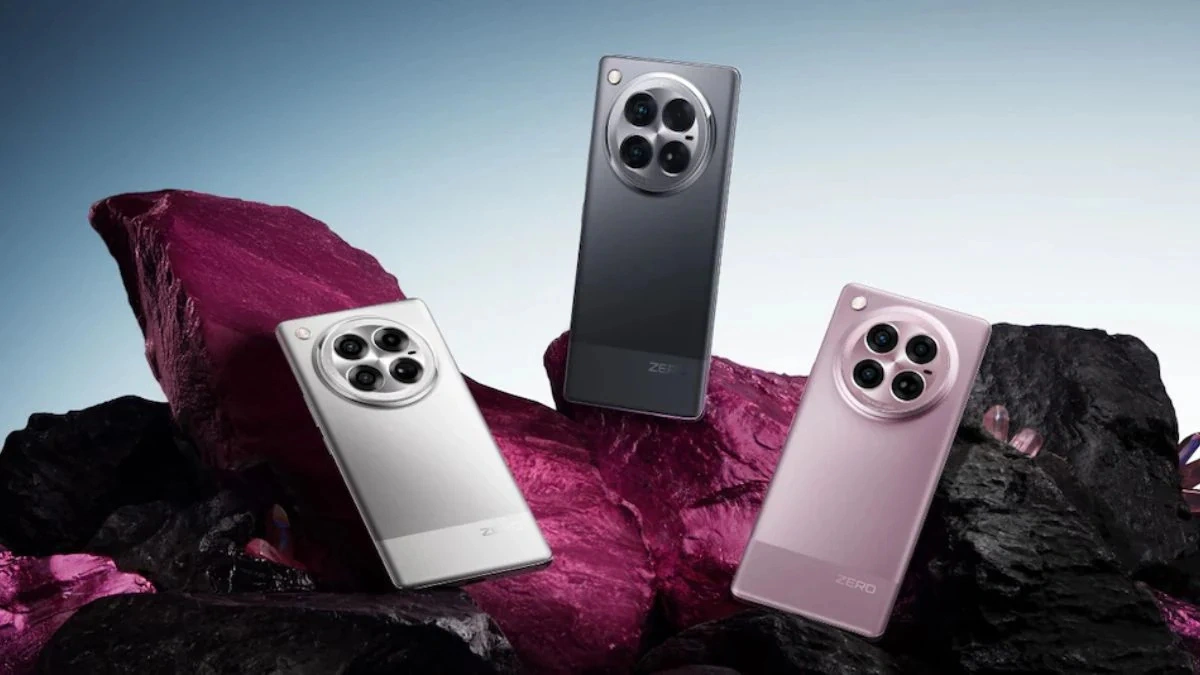
Unlock the full potential of your Infinix Zero 40 with these 10 stunning tricks. Boost performance, enhance photography, and customize your device for a seamless user experience.
10 Stunning Infinix Zero 40 Tricks That Will Upgrade Your Experience
The Infinix Zero 40 has rapidly gained attention as one of the most powerful and feature-rich smartphones in its segment. With a sleek design, high-performance specifications, a vibrant AMOLED display, and an advanced camera system, it’s a device that caters to both casual users and tech enthusiasts. However, many of its users are unaware that there are hidden tricks and optimizations that can unlock the device’s full potential.
This comprehensive guide will walk you through 10 stunning tricks for the Infinix Zero 40 that can significantly enhance your overall experience. From performance boosts and battery optimization to photography hacks and smart features, these tips are designed to help you get the most out of your smartphone. Whether you are a gamer, photographer, productivity-focused professional, or everyday user, these tricks will transform the way you interact with your Infinix Zero 40.
1. Enable Ultra-Smooth 120Hz Display Mode
The Infinix Zero 40 comes equipped with a 120Hz AMOLED display, which provides fluid animations, smoother scrolling, and a better gaming experience. By default, the phone may be set to 60Hz to conserve battery, but enabling the full refresh rate unlocks a significantly smoother visual experience.
Step-by-step guide:
- Open Settings → Display → Refresh Rate.
- Select 120Hz for ultra-smooth visuals.
- Confirm the changes and enjoy a buttery-smooth interface.
Benefits of 120Hz display:
- Enhanced gaming experience with less motion blur.
- Smoother animations in apps and transitions.
- Reduced screen tearing during video playback or gaming.
Pro tip: You can also enable adaptive refresh rate, if available, to let the phone dynamically adjust between 60Hz and 120Hz based on app usage to conserve battery without sacrificing performance.
User scenario: Imagine scrolling through a photo-heavy social media feed or gaming in high-speed action games; enabling 120Hz ensures every swipe and movement is fluid, giving a premium feel similar to flagship devices.
2. Optimize Battery with Smart Power Mode
Battery life is one of the most critical aspects of a smartphone experience. The Infinix Zero 40 features AI-powered battery optimization that adjusts power usage based on your habits. By enabling Smart Power Mode, the phone automatically prioritizes performance or battery life depending on your activity.
How to enable:
- Navigate to Settings → Battery → Power Mode.
- Select Smart Mode.
- Optionally, activate Battery Saver when on long trips or low battery.
Key advantages:
- Extended battery life without manual adjustments.
- Intelligent background app management.
- Balances performance and power efficiency.
Pro tip: Combine Smart Power Mode with dark mode to further reduce power consumption, especially on AMOLED displays where black pixels consume less energy.
User scenario: During a long commute or travel day, enabling Smart Power Mode ensures your device lasts the entire day, even with moderate gaming, browsing, and video streaming.
3. Capture Stunning Photos with AI Camera Tricks
The Infinix Zero 40 camera is equipped with advanced AI features, yet most users only scratch the surface. Unlocking these features can transform your photography skills and help you take professional-looking photos without additional equipment.
Essential camera tricks:
- Enable AI Scene Detection: The camera automatically adjusts settings like exposure, saturation, and contrast depending on the subject.
- Use Night Mode for low-light photography: Captures brighter and sharper images even in dimly-lit environments.
- Try Ultra-HD Mode: Increases photo resolution for detailed and crisp pictures.
- Explore Portrait Mode: Uses AI to separate the subject from the background for professional-looking shots.
Benefits:
- Vibrant and accurate colors in every photo.
- Enhanced clarity and detail for social media and personal albums.
- High-quality low-light and portrait photography without post-editing.
Pro tip: Always clean the camera lens before shooting; even small smudges can reduce image clarity. Experiment with angles and lighting to fully utilize AI features.
User scenario: Whether capturing a sunset, a family gathering, or a fast-moving subject, these AI tricks allow you to take standout photos comparable to high-end devices.
4. Customize Always-On Display
The Always-On Display (AOD) allows you to see notifications, time, battery status, and other information without unlocking your phone. The Infinix Zero 40 offers customizable styles and options to make your lock screen both functional and visually appealing.
How to customize AOD:
- Go to Settings → Display → Always-On Display.
- Choose from available designs like clocks, calendar widgets, or even GIFs.
- Configure which notifications appear on the AOD.
Benefits:
- Quick access to important notifications without unlocking.
- Personalization with different clock styles or wallpapers.
- Minimal impact on battery when optimized.
Pro tip: Combine AOD with battery optimization by limiting updates for non-essential notifications, ensuring your screen remains energy-efficient.
User scenario: Check time, battery, or messages at a glance while your phone sits on your desk or nightstand without the need to unlock it repeatedly.
5. Enable Game Mode for Ultimate Performance
Gamers will benefit greatly from the Game Mode on the Infinix Zero 40. This mode optimizes CPU and GPU performance, blocks notifications, and ensures smoother gameplay even in graphics-intensive games.
How to enable:
- Navigate to Settings → Game Mode.
- Add your favorite games to the optimized list.
- Customize settings like frame rate, touch sensitivity, and notifications.
Benefits:
- Reduced lag and stutter in high-performance games.
- Block distractions with Do Not Disturb during gameplay.
- Maximize hardware potential for immersive experiences.
Pro tip: Combine Game Mode with 120Hz display for a visually smooth and responsive gaming session.
User scenario: While playing a fast-paced action game, Game Mode ensures every swipe and tap responds instantly, making competitive gameplay more enjoyable and immersive.
6. Use Split-Screen Multitasking
The Infinix Zero 40 supports split-screen multitasking, allowing two apps to run simultaneously, which is especially useful for productivity or entertainment purposes.
How to enable:
- Open Recent Apps.
- Tap the split-screen icon on the desired app.
- Select the second app to run alongside the first.
Benefits:
- Watch videos while chatting or browsing.
- Compare documents or spreadsheets side by side.
- Increase productivity without constantly switching apps.
Pro tip: Use split-screen with messaging apps to quickly respond to messages while watching live events or tutorials.
User scenario: While attending an online class, you can have the lecture video on the top screen and note-taking app open on the bottom simultaneously, streamlining learning.
7. Boost Performance with Storage and RAM Management
Even the most powerful devices can slow down if storage is filled with junk files or memory is overloaded. The Infinix Zero 40 comes with built-in storage and RAM optimization tools.
Steps to boost performance:
- Go to Settings → Storage → Optimize.
- Clear cache, temporary files, and unnecessary media.
- Use RAM Boost to free memory for smoother app performance.
Benefits:
- Faster app launching and multitasking.
- Reduced lags and occasional freezes.
- Overall improved responsiveness of the device.
Pro tip: Schedule a weekly cleanup routine to maintain peak performance. Also, transfer large media files to cloud storage to free internal memory.
User scenario: Gamers or heavy app users will notice smoother performance after cleaning up storage and freeing up RAM, especially during multitasking or running heavy games.
8. Customize Navigation with Gesture Controls
Gesture navigation on the Infinix Zero 40 replaces traditional navigation buttons, providing a more intuitive and immersive experience.
How to enable:
- Go to Settings → System → Gestures.
- Enable swipe gestures for back, home, and recent apps.
- Customize gestures for shortcuts to apps or features.
Benefits:
- One-handed usability with intuitive swipes.
- Sleek and modern interface without cluttered buttons.
- Faster and fluid navigation between apps.
Pro tip: Spend a few days getting used to gestures; once mastered, they can dramatically improve speed and ease of use.
User scenario: Swipe up to go home, swipe from the side to go back, and swipe up-and-hold for recent apps. This allows seamless navigation while gaming or reading content.
9. Secure Your Device with Face and Fingerprint Unlock
Security is a top priority, and the Infinix Zero 40 offers multiple biometric options: in-display fingerprint scanner and AI face unlock.
How to enable:
- Go to Settings → Security → Face & Fingerprint.
- Register your fingerprints and facial data.
- Use these features to unlock apps or authorize payments securely.
Benefits:
- Quick and secure access to the device.
- Protects sensitive apps and personal data.
- Compatible with app locks, banking apps, and payments.
Pro tip: Combine both methods for enhanced security; use fingerprint for quick unlock and face recognition for hands-free convenience.
User scenario: Unlock your phone instantly while commuting, or access banking apps securely without typing passwords every time.
10. Enable Smart Assistant and AI Features
The Infinix Zero 40 features a built-in AI assistant to streamline your daily activities. From reminders to personalized suggestions, it makes interacting with your phone smarter.
How to enable:
- Swipe right on the home screen for Smart Assistant.
- Customize cards for news, weather, calendar events, or reminders.
- Activate voice commands for hands-free control.
Benefits:
- Saves time with smart suggestions based on usage habits.
- Quick access to information without opening multiple apps.
- Personalized experience with app shortcuts and reminders.
Pro tip: Use voice commands to create reminders, send messages, or open apps without touching the screen.
User scenario: Ask the assistant to check the weather while cooking or schedule a meeting while commuting, making your day more organized and productive.
Conclusion
The Infinix Zero 40 is more than just a smartphone; it’s a powerful companion for gaming, productivity, photography, and daily tasks. By applying these 10 stunning tricks, you can unlock its full potential, optimize performance, extend battery life, capture professional-level photos, and streamline your daily activities.
From enhancing gaming performance and multitasking efficiency to customizing your device interface and using smart AI features, these tips ensure you get the best possible experience from your Infinix Zero 40.
Embrace these tricks, explore the hidden features, and make your Infinix Zero 40 not just a phone, but a truly smart device that adapts to your lifestyle.
Sources:
FAQs
1. How can I extend my Infinix Zero 40 battery life?
Enable Smart Power Mode, reduce screen brightness, close background apps, and limit gaming during long usage.
2. Does the Infinix Zero 40 support 5G?
Yes, it supports 5G connectivity, ensuring faster downloads, streaming, and online gaming.
3. How do I take professional-looking photos?
Use AI Scene Detection, Night Mode, Ultra-HD Mode, and explore different angles and lighting for the best shots.
4. Can I run two apps simultaneously?
Yes, split-screen mode allows you to multitask efficiently with two apps side by side.
5. How do I clear cache and optimize performance?
Go to Settings → Storage → Optimize, clear junk files, and use RAM Boost.
6. How do I enable gesture navigation?
Navigate to Settings → System → Gestures, then enable swipe-based navigation.
7. Is the AI assistant helpful for daily tasks?
Absolutely, it provides reminders, weather updates, news, and personalized suggestions based on usage.